Animation Source Forums

=> Visit the Animation Source fansites!

Read the site rules!

All times are UTC - 6 hours


Post new topic Reply to topic  [ 4 posts ] 
Author Message
 Post subject: How to Add Shadows in GIMP
PostPosted: Wed Feb 27, 2013 10:34 am 
Offline
Beginner
Beginner
User avatar

Joined: Thu Oct 04, 2012 7:47 am
Posts: 108
Location: England
Gender: Female


I’ve been asked to make a tutorial outlining how to make an easy shadow effect in GIMPshop. So, here you go.

First things first; you need your image. Make sure it has a transparent background, or the rest of these steps won’t work.

Here’s one I made earlier ^^

Image

Next, copy and paste your image onto a new layer on your background. Again, make sure it’s a new layer, or the rest of the steps won’t work

Image

Now, go to ‘Filters’, ‘Light and Shadow’ and select ‘Drop Shadow’. You can play around with the levels on this, but I’ll just stick with the preset level for this tutorial.

Image

You should now end up with something like this

Image

But this shadow just makes it look like your character is floating above a flat background. That’s not what you want. So, click on the layer containing you shadow. Next, go to the Toolbox and select ‘Shear Tool’. Using this, twist your shadow so it’s at an angle to your character, like this
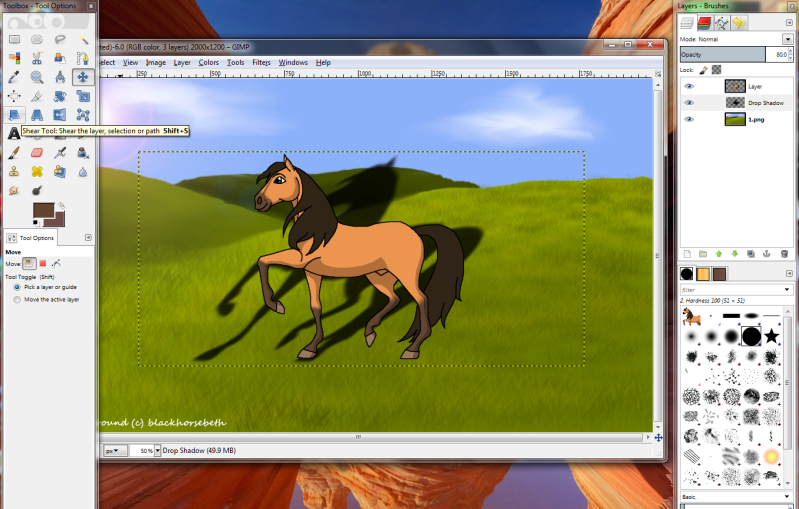
Image

Now you need to use the Move Tool to position your shadow so the feet line up. Then use the Scale Tool to make it the right size. Longer/larger shadows depict lower light, such as sunrise/sunset, so choose the length you feel is most appropriate to your background’s time of day.

Image

But this shadow is very dark, so next go to the Opacity scale on your Layer’s toolbox, and reduce the opacity of the image to the level you want. Finally, go to ‘Image’ and choose ‘Flatten Image’. This is what your final picture will look like ^^ (and please ignore the fact that the shadow's on the wrong side of Spirit; I was doing this quickly as an example ^^; )

Image

_________________
Image
Huge thank you to Roiffalo for help with sorting out my signature ^^


Top
 Profile  
Reply with quote  
 Post subject: Re: How to Add Shadows in GIMP
PostPosted: Fri Mar 01, 2013 11:24 am 
Offline
Beginner
Beginner

Joined: Thu Nov 11, 2010 11:57 am
Posts: 152
Hey, this is pretty useful!
I don't use Gimp anymore but when I did use Gimp, I was trying to figure out how to do something like this for ages. XD
The pictures that you add to the tutorial also help make it easy to follow. =)


Top
 Profile  
Reply with quote  
 Post subject: Re: How to Add Shadows in GIMP
PostPosted: Sun Mar 17, 2013 5:04 am 
Offline
Beginner
Beginner
User avatar

Joined: Mon Jul 11, 2011 5:28 pm
Posts: 185
Location: Classified
Gender: Female
Its also easy to make a copy of the image/drawing, lock it by turning the lock on in the layer box(For the selected layer), and paint it all one color in this case black. And then change the size and opacity and perspective of the copied layer meant to be the shadow, that's how I do it, or at least how I did before I found this helpful tutorial so great job

_________________
------------------------------------------------
Formerly known as Safari the cougar/Tyto-Alba

Image


Top
 Profile  
Reply with quote  
 Post subject: Re: How to Add Shadows in GIMP
PostPosted: Tue May 14, 2013 4:25 am 
Offline
Advanced
Advanced
User avatar

Joined: Sun Dec 02, 2007 7:00 am
Posts: 394
Location: Labooma Island
Gender: Female


Great! This is very useful! Thank you, BlackHorse!


Top
 Profile  
Reply with quote  
Display posts from previous:  Sort by  
Post new topic Reply to topic  [ 4 posts ] 

Advertisement


All times are UTC - 6 hours


Who is online

Users browsing this forum: No registered users and 0 guests


You cannot post new topics in this forum
You cannot reply to topics in this forum
You cannot edit your posts in this forum
You cannot delete your posts in this forum
You cannot post attachments in this forum

Search for:
Jump to:  
Powered by phpBB © 2000, 2002, 2005, 2008 phpBB Group