I have noticed that not everyone seems to know how to neatly colour in linearts and renders using GIMP or a similar image program. So I decided to make this tutorial to help ^^
For the record, I’ll be using Gimp 2.8 in this tutorial, but these steps are pretty much universal to all versions of Gimp.
Step 1: Choose your lineart/blank render. Make sure the outlines are neat and not pixelated. In the 'Toolbox' (on the left of the screen) click on the 'Fuzzy Select Tool', then click on the background of your lineart/blank render. You should notice a thicker black line appearing and disappearing around your lineart.
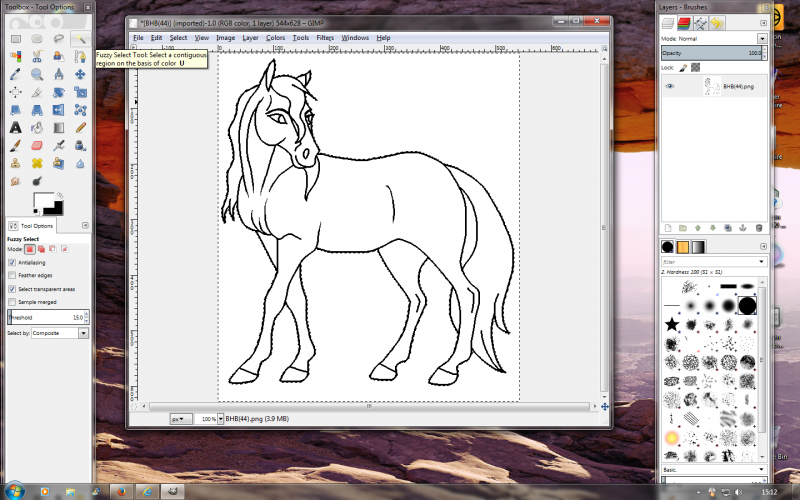
Step 2: Go to your picture, click on 'Layer', go down to 'Transparency' and click on 'Add Alpha Layer' if it isn't greyed out. This will make sure the background goes transparent.

Step 3: Take the 'Eraser' tool and erase the white background. You may need to repeat Step 1 if any of the background is cut off from the main background, like the area between the horse's tail and back legs, below.

Step 4: Once you've erased all of the background, go back to 'Layers' and click on 'New Layer'.

Step 5: Go over to the 'Layers - Brushes' box (on the right hand side of the screen) and click on 'Mode'. Scroll down to 'Multiply' and click on it.

Step 6: Now choose your base colour and using the pencil or the brush in the Toolbox, colour in your lineart.

Step 7: Add your character's markings. If you want very sharp markings, use the Pencil tool. If you want the markings to be softer, use the Paintbrush tool. Use and experiment with different brushes to get the effects you want. because this layer is set to 'Multiply' the colour will go on over the top of the lines, so you don't have to worry about smudging or erasing the lines with your colour. Once you are happy with your picture, go back to the 'Layers - Brushes' box, right click on your new layer and click on 'Merge Down'. If you want, you can end here by using the paintbrush to fill in the background, or clicking on 'Image' and clicking on 'Flatten Image'.

Step 8: If you want to make your picture more professional, now's the time to add shading. Repeat steps 4 and 5. Now select a grey colour and using the Airbrush tool, shade in the areas of your image you want to be in shadow.

Step 9: Use the 'Eraser' tool to neaten up the shading, then go to 'Filters', go down to 'Blur' and click on 'Gaussian Blur'. Play around with the levels until you find something you like. I normally set the Horizontal and Vertical levels to 10.0.

Step 10: Finally, go back to the 'Layers - Brushes' box, right click on your new layer and click on 'Merge Down'. Your character is now complete. If you want to, add a plain background. If you want to add a detailed background, see my
Tutorial on adding backgrounds.

I hope this has been helpful. Drawing (c) me
_________________

Huge thank you to Roiffalo for help with sorting out my signature ^^





 This should be very helpful.